BTC - Bitcoin
 USDTERC20 - USDT ERC20
 ETH - Ethereum
 BNB - Binance
 BCH - Bitcoin Cash
 DOGE - Dogecoin
 TRX - TRON
 USDTTRC20 - USD TRC20
 LTC - LiteCoin

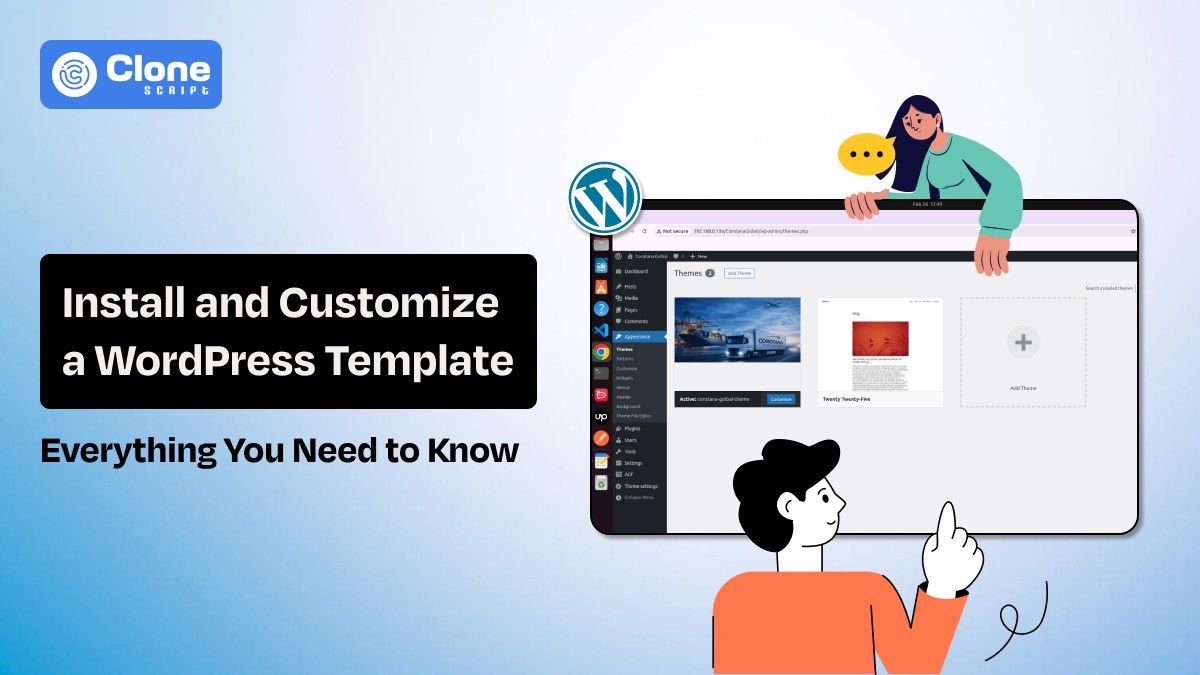
How to Install and Customize a Website Template in WordPress with Ease and Security
WordPress runs millions of websites because it removes complexity from web development. One of its biggest strengths is the ability to build a professional-looking website using a web template, without writing code from scratch. However, many users install a WordPress template and stop there, missing out on customization, performance tuning, and SEO benefits.
This guide explains how to properly install and customize a WordPress template, covering beginner-friendly methods as well as practical customization techniques used by professionals. Whether you’re launching a blog, business site, or niche project, this article helps you do it the right way.
Why Choosing the Right WordPress Template Is Important
A WordPress template controls more than appearance. It influences how users interact with your website and how search engines evaluate it.
A well-built WordPress theme offers:
-
Clean, optimized code that supports Search Engine Optimization recommended practices.
-
Responsive layouts that adapt to all screen sizes from desktops, mobiles, and tablets.
-
Compatibility with plugins and page builders to operate smoothly.
-
Better performance and faster load times keep engaging the users on the platform.
On the other hand, poorly designed templates often cause layout issues, slow page speed, and plugin conflicts. This is why selecting a responsive WordPress theme that matches your website goals is a foundational decision, not just a design choice.
For example:
-
Blogs need readability and typography control
-
Business websites require structured layouts and CTAs
-
Crypto websites benefit from bold visuals and flexible sections
Premium WordPress templates are optimized for it, and you can rely on them.
How to Install a Web Template in WordPress
There are several ways to install a template in WordPress. The choice of method depends on the source of your theme.
Method 1: Installing from the WordPress Theme Directory
This is the easiest method for beginners and is ideal for free WordPress templates.
Follow these steps:
-
First, log in to your WordPress admin panel by logging in to the platform with your credentials.
-
Go to Appearance → Themes → Add New
-
Search for a theme using the relevant keywords you want to add.
-
Preview the design and layout.
-
Click Install, then Activate.
Themes from the official directory are reviewed for security and compatibility, ensuring that they are safe to use.
Method 2: Uploading a Downloaded or Premium WordPress Template
In addition to the WordPress theme directory, there is another way to look for relevant themes from individual providers and template marketplaces. You can buy or download the theme from outside sources, which will be in the form of a ZIP file.
Follow these steps to upload the theme to the WordPress website:
-
Navigate to Appearance → Themes → Add New
-
Click Upload Theme
-
Select the ZIP file
-
Install and activate the theme.
This is a common approach for high-end WordPress themes and niche themes designed for particular sectors such as e-commerce, crypto, and blogging.
Method 3: Installing a WordPress Theme Using FTP
This approach should be used only if the theme file is large, as it may lead to errors in the process due to limitations in the management and uploading of files. This approach is ideal for those who are familiar with WordPress errors and solutions.
To upload the theme, follow these steps:
-
Unzip the file on your computer
-
Access your server via FTP.
-
Upload the theme folder to /wp-content/themes/
-
Activate the theme from the WordPress dashboard.
This approach is not necessary for most people but is more reliable.
How to Customize a WordPress Template
Installing a template is just the beginning. It is the customization that turns it into a personalized website.
Here are some ways to achieve that.
-
Using the WordPress Customizer.
The WordPress Customizer is a feature that allows you to make changes with live previewing.
Using it, you can change the following:
-
Logo design that is branded, a site title that is meaningful, and tells what your website is, and a favicon that identifies your brand.
-
Colors that are branded and for other relevant sections based on the products and services, and typography.
-
Header, footer, and menu layout according to your needs to control the user experience.
-
Widget areas to control the sections, content, and so on, easily.
You can do this by going to Appearance → Customize.
This is a safe way to customize your theme because it doesn’t affect the theme files.
-
Customizing Layouts Using Page Builders
If you are not familiar with WordPress design and coding, then page builders are a great option for visual editing.
You can use these popular tools to customize the layouts:
-
Elementor: This is a famous page builder that offers advanced design control with real-time visual editing.
-
Gutenberg (block editor): Gutenberg is a block-based editor that allows you to build pages and posts directly in the WordPress editor.
-
Divi Builder: It provides flexible layout options and design elements to quickly create pages.
Page builders provide you with the flexibility to design and customize different parts of your website layout.
-
Create landing pages: You can create custom landing pages designed specifically for conversions, campaigns, or content objectives.
-
Rearrange sections visually: Sections can be rearranged, resized, or reordered visually without impacting the overall site structure.
-
Build custom headers and footers: Page builders enable you to design custom headers and footers without modifying theme files.
This is very appropriate when customizing WordPress layouts for marketing pages, blogs, or crypto sites that need flexible designs.
-
Adding Custom CSS for Design Control
Sometimes, theme settings are not enough. Custom CSS enables you to fine-tune the design.
Custom CSS permits you to fine-tune the design without having to touch the theme files.
-
Customize spacing and margins: CSS can be used to fine-tune spacing and margins for better layout consistency.
-
Customize button styles: CSS can be used to fine-tune spacing and margins for better layout consistency.
-
Customize typography: You can customize button colors, sizes, and hover styles to suit your design.
You can safely add CSS through Appearance > Customize > Additional CSS.
However, for major changes, it is advisable to use a child theme to prevent losing changes during theme updates.
-
Making the Template Mobile-Friendly and Fast
A mobile-friendly WordPress theme should load quickly on mobile devices.
Using best practices in optimization ensures that the theme remains fast and functional.
-
Testing layouts on mobile and tablet views: Testing layouts on various devices helps you detect spacing and readability problems early on.
-
Optimizing images before upload: Optimizing images before uploading them to WordPress helps reduce page load times and ensures faster performance.
-
Preventing unnecessary animations: Preventing unnecessary animations helps prevent slow loading and ensures a proper user experience on mobile devices.
-
Using caching and performance plugins: Caching and performance plugins can help alleviate server load and improve page loading times.
All customization activities should enhance usability without impacting page loading speed or SEO rankings.
Troubleshooting Common Problems During WordPress Theme Installation
During WordPress theme installation, the following problems may occur, and you must resolve them before going live with your website:
WordPress Issues
-
Broken layout or design after installing conflicting plugins that are not compatible with the theme.
-
Importing demo content is not possible due to the absence of required plugins or server constraints.
-
Fonts, icons, or images are not loading properly due to caching issues or blocked resources.
-
Page loading is slow due to unoptimized images or excessive theme functionality.
-
Missing or misaligned header, footer, or menu after theme activation.
-
Mobile layout problems where elements are not aligned correctly on mobile devices.
Resolving Issues
-
Disable the plugins one by one to find the conflicts and only enable the compatible ones.
-
Install all the suggested plugins and re-import the demo content if server limit changes are needed.
-
Clear the site, plugin, and browser cache to refresh the updated styles and scripts.
-
Optimize the images and avoid unnecessary theme functionality for optimized performance.
-
Reassign the menus, widgets, and header configuration through the WordPress Customizer.
-
Check the responsiveness and adjust the layout settings or mobile CSS as needed.
Most WordPress installation problems are configuration issues that can be fixed without changing the theme.
Best WordPress Templates & Themes to Start Your Website
Selecting the appropriate WordPress theme enables you to start faster, ensures design consistency, and makes it easier to customize the layouts for blogging, business, or crypto niches.
1. Free Professional Blogging Website WordPress Template
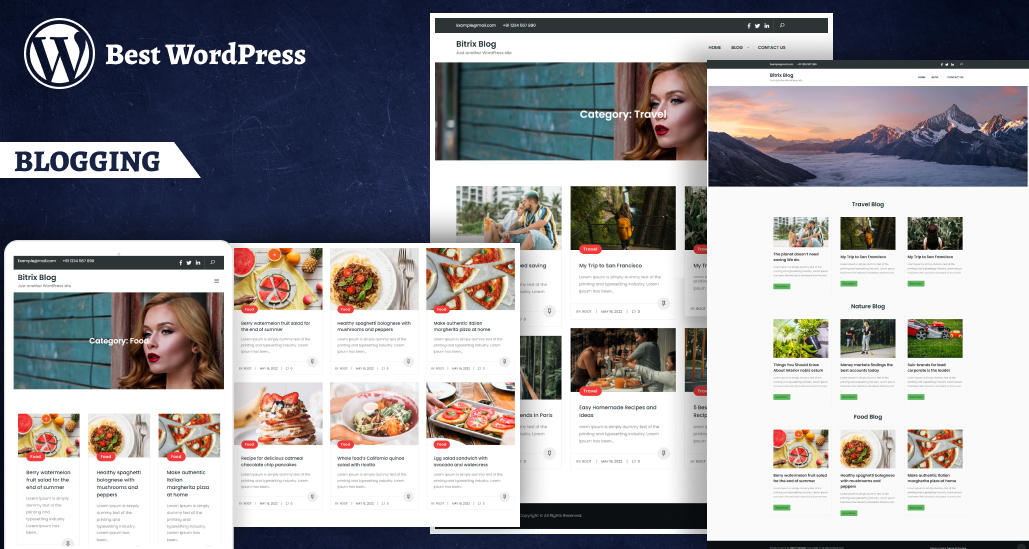
This free professional blogging WordPress template is created for writers, bloggers, and publishers who value readability and clean designs. The template features a responsive design, easy navigation, and flexibility in customization. They can apply a template to their personal blogging and content-based websites.
Industry Use: Blogging, content publishing, personal branding, and digital writing platforms.
Features
-
Clean and responsive blog design
-
SEO-friendly structure
-
Easy customization using Customizer
-
Fast-loading and lightweight design
2. Zeus Meme Coin WordPress Theme for Crypto Websites
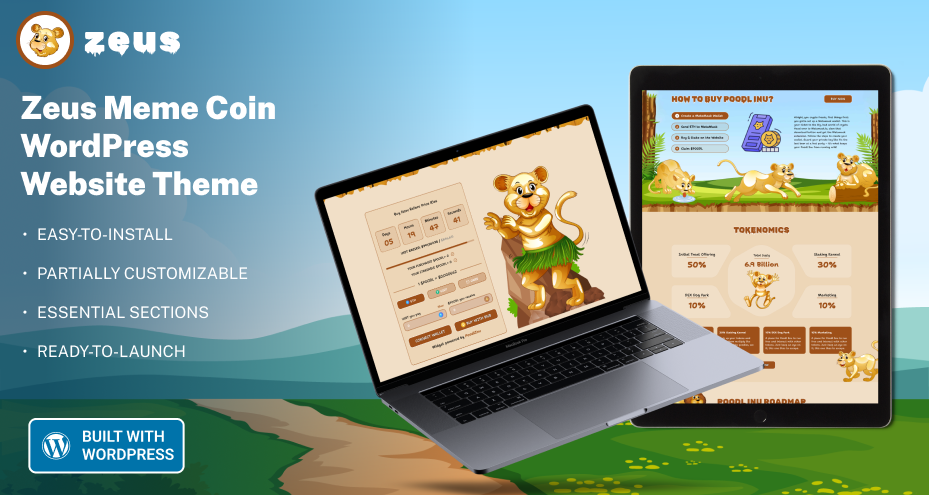
The Zeus Meme Coin WordPress theme is developed for crypto projects that require a strong and trendy online presence. The theme is ideal for flexible hero sections of the website, engaging designs, and easy customization. With this theme, meme coin websites convey value, updates, and community news effectively.
Industry Use: Cryptocurrency, blockchain projects, meme coin platforms.
Features
-
Crypto-focused homepage sections
-
Responsive and trendy design
-
Page builder compatibility
-
Easy content and layout customization
3. PEPE Meme Coin WordPress Website Theme
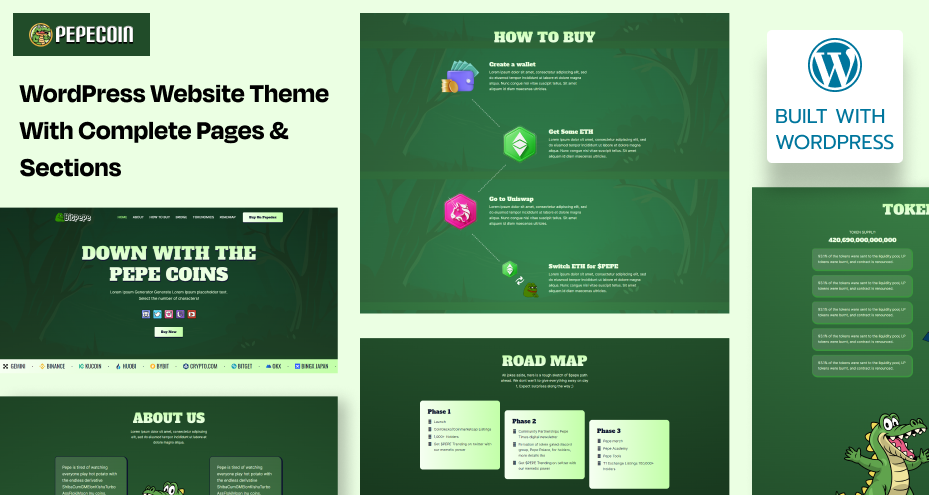
The PEPE token WordPress theme is created for community-based crypto projects that require effective meme coin marketing and branding. The theme provides visually expressive design, organized layout, and customization options, making it perfect for token marketing, roadmaps, and announcement sections.
Industry Use: Meme coins, crypto communities, blockchain startups.
Features
-
Visually expressive layout
-
Custom sections for token details
-
Mobile-friendly design
-
Easy theme customization options
4. Smily Doge WordPress Meme Coin Theme
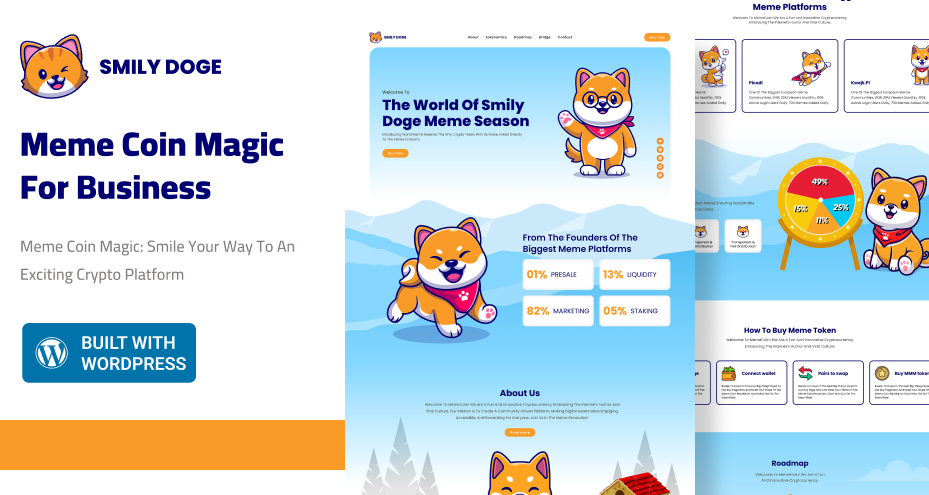
The Smily Doge WordPress meme coin theme is perfect for Doge-based crypto projects that require a fun and organized design. The theme provides a perfect mix of visual expression and usability for showcasing updates, token information, and community content.
Industry Use: Doge-based crypto projects, meme communities.
Features
-
Fun and engaging visual style
-
Responsive layout across devices
-
Easy content updates
-
Compatible with all WordPress plugins
5. DOGEMOB Meme Coin WordPress Theme

DOGEMOB is a premium WordPress theme designed for scalable meme coin and cryptocurrency projects. The theme is designed with organized layouts, customization options, and optimized design for performance. For projects aiming for long-term growth and community engagement, this template will prove useful.
Industry Use: Cryptocurrency platforms, meme coin ecosystems.
Features
-
Organized and scalable layout
-
Search engine optimization-friendly theme architecture
-
Responsive layout
-
Customization and maintenance ease
These templates are compatible with WordPress customization and page builder tools for use in web development.
Conclusion
Installing and customizing a WordPress template gives you control over the look, feel, performance, and growth of your website. A well-chosen template and effective customization will give your website a professional look, fast loading speed, and optimized SEO.
Instead of considering themes as designs, you should consider them as a starting point. With the above methods, you can develop and optimize your WordPress website with confidence.
FAQs
-
How do I install a web template in WordPress?
You can install a WordPress template by going to Appearance → Themes → Add New. After it, search the theme directory or upload a ZIP file and activate the theme.
-
What is the difference between a WordPress theme and a template?
A WordPress theme is responsible for the overall design and layout, while templates are individual layout files used inside a theme for certain pages or sections.
-
Which page builder is best for WordPress customization?
Elementor is the most popular choice for flexibility. You can use Gutenberg for simple editing, and Divi is the best choice for pre-designed layouts.
-
What should I do if my WordPress theme is not functioning properly after installing plugins?
Disable the plugins one by one to identify the cause of the issue, and replace or update the problematic plugin to resolve the layout issue.
-
Why is my WordPress demo content not importing?
The import of the demo content will fail due to the absence of required plugins, insufficient server memory, or PHP execution limits.
-
What is a child theme, and when should I use it?
The child theme is a feature in WordPress that enables you to modify a WordPress theme safely without losing any modifications during updates, and it should be used for major modifications.
-
Why are fonts or icons not displaying properly in my WordPress theme?
This issue will occur due to caching issues, blocked resources, or the absence of font libraries, and can be resolved by clearing the cache or reloading resources.
-
How can I optimize my WordPress theme to load faster?
Optimize images, avoid heavy animations, use caching plugins, and use a fast WordPress theme to load faster and optimize.