BTC - Bitcoin
 USDTERC20 - USDT ERC20
 ETH - Ethereum
 BNB - Binance
 BCH - Bitcoin Cash
 DOGE - Dogecoin
 TRX - TRON
 USDTTRC20 - USD TRC20
 LTC - LiteCoin

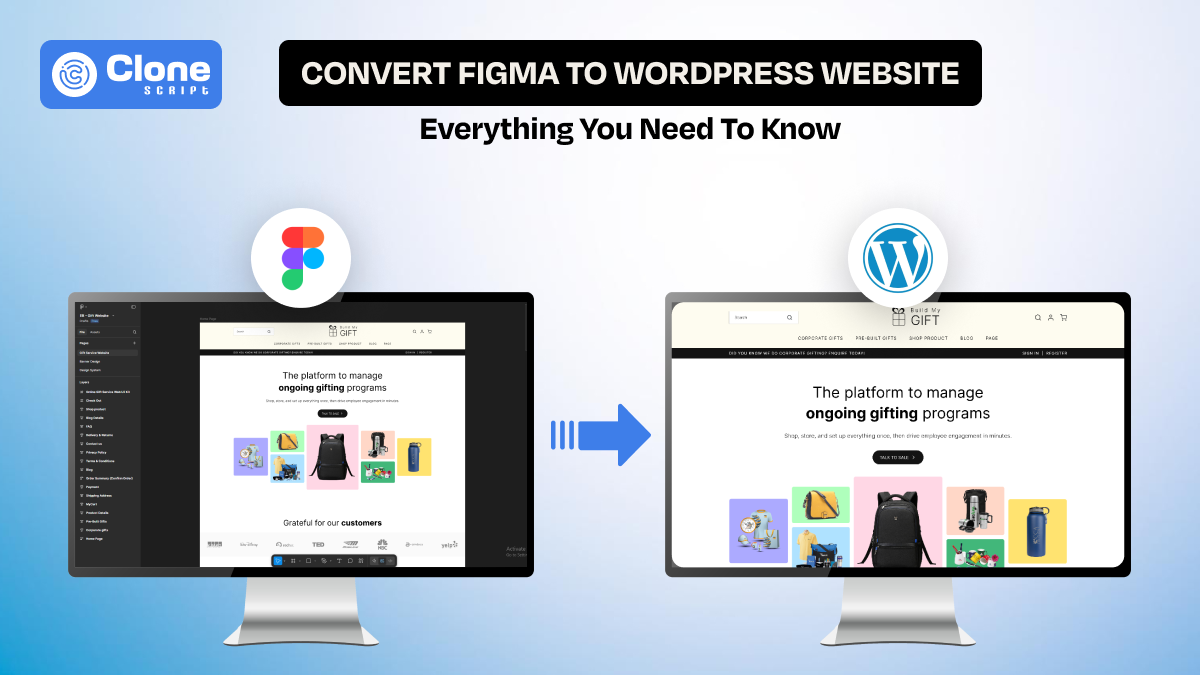
Best Ways to Convert Figma Design File to WordPress Live Website
Thinking to convert a Figma design into a WordPress website seems straightforward until execution begins. What looks pixel-perfect in Figma breaks during development due to responsiveness, CMS structure, and performance constraints.
In 2026, the workflow has changed. You now have three paths: manual development, page builders, and AI-powered automation. Each comes with trade-offs in speed, scalability, and control.
This guide breaks down the exact workflow, tools, and decision framework to help you choose the most efficient way to convert a Figma design file to a WordPress website.
Why Converting Figma to WordPress Isn’t as Simple as It Looks
First is the design and development difference that makes it complex to convert a UI screen into a responsive website. Also, ignoring the website responsiveness, not using the components, and implementing heavy assets caused workflow issues.
There is a Core Gap between Design and Development.
Figma is a visual design tool, not a website development environment.
When working on a Figma to WordPress conversion, it’s important to understand that Figma doesn’t have properties like semantic HTML structure, responsive breakpoints, or CMS logic.
This creates a gap between design and implementation.
During a typical Figma to WordPress workflow, developers must interpret spacing, hierarchy, and behavior, not just copy visuals. This is why a direct conversion of design to coding approach often leads to inconsistencies.
Common Mistakes That Break the Final Website
When you follow a Figma to WordPress tutorial-based approach, some issues arise. For that, you have to understand fundamentals.
-
Ignoring responsiveness will result in layouts breaking across devices.
-
Overusing absolute positioning can reduce flexibility.
-
No component system limits scalability in WordPress.
-
Heavy assets may impact performance and SEO.
When You Should (and Shouldn’t) Convert Figma to WordPress
Use a Figma to WordPress conversion when you need a custom, CMS-driven website with high design accuracy.
Avoid it if a pre-built theme can meet most requirements or when working under tight timelines or budget constraints.
3 Proven Ways to Convert Figma to WordPress
There are three possible options you can follow for making a UI ready Figma design file into a functional and live WordPress website.

-
Manual Coding
-
Page Builders (Fastest Approach)
-
AI & Automation Tools (Emerging in 2026)
Now, see what's best for you.
Method 1: Manual Coding (Custom WordPress Development)
If your priority is performance, scalability, and full control, manual coding is the best way to handle a Figma to WordPress conversion. This method suits full-stack developers and teams building custom websites where clean architecture and long-term flexibility matter more than speed.
In this approach, the Figma design is not copied directly. Instead, developers interpret the layout and convert it into structured HTML, CSS, and JavaScript. This code is then integrated into a custom WordPress theme.
As part of a professional Figma to WordPress workflow, tools like ACF (Advanced Custom Fields) or Gutenberg blocks are used to make content dynamic and manageable.
Workflow of this method:
-
Then, develop a custom WordPress theme.
-
Add dynamic fields using ACF or Gutenberg.
Advantages of this method:
-
Full control over performance and front-end code quality.
-
Scalable and future-proof structure.
-
Best for SEO and Core Web Vitals to get ranking.
Limitations of this method:
-
Time-intensive process for startups.
-
Requires strong development expertise and is costly.
Method 2: Page Builders (Fastest Approach)
Choose page builders for converting Figma to WordPress because they are made for speed and ease of execution. This method is ideal for freelancers and agencies who need to deliver client projects quickly without compromising too much on design accuracy. The website development budget also remains affordable.
Instead of coding everything from scratch, you recreate the Figma layout using drag-and-drop tools like Elementor, Bricks, or Gutenberg. This simplifies the Figma to WordPress workflow, allowing you to build pages visually. This helps to maintain structure through reusable sections and global styles.
Popular tools:
-
Elementor: This is a famous drag-and-drop builder for fast Figma to WordPress conversion and easy customization.
-
Bricks Builder: This is a performance-focused builder offering a clean structure and better control for scalable WordPress websites.
-
Breakdance: This is a lightweight modern builder designed for speed, flexibility, and simplified Figma to WordPress workflows
-
Gutenberg: This is a native WordPress block editor ideal for structured, SEO-friendly, and future-proof website development
Workflow of this method:
-
Export assets from Figma.
-
Rebuild the layout using a page builder.
-
Add and manage dynamic content.
Advantages of this method:
-
Faster development and deployment on the web.
-
Minimal coding required.
-
Easy for clients to edit content.
Limitations of this method:
-
Slight performance trade-offs.
-
Less flexibility for highly complex designs, such as Fintech or Dashboards.
Method 3: AI & Automation Tools (Emerging in 2026)
If you need speed for prototyping or quick launches, AI tools are the fastest way to approach a Figma-to-WordPress conversion without coding. This method works best for startups and teams testing ideas where time-to-market is more important than perfect code.
AI-powered tools and Figma plugins can generate front-end code directly from designs, reducing manual effort. In a modern design-to-development workflow, these tools act as a shortcut by converting layouts into usable code that can later be refined.
Examples of tools:
-
Figma Plugins (Anima, Locofy.ai)
-
AI Website Builders (Framer AI, Durable)
-
Design-to-Code Platforms (Builder.io, TeleportHQ)
Advantages of this method:
-
Extremely fast execution compared to coding and page builders.
-
Reduces manual development work.
Limitations:
-
Its output requires cleanup.
-
Limited control over structure and performance.
-
Not reliable for large-scale production websites.
So, it depends on you what kind of websites you’re making, and then choose the method.
Figma to WordPress: Step-by-Step Workflow (Real Process)
A structured Figma to WordPress workflow helps reduce errors, speed up development, and maintain consistency between design and the final website. Instead of starting directly into development, following a clear process ensures a smoother Figma to WordPress conversion.

Step 1: Prepare Your Figma File for Development
Before starting the design conversion process, your design file must be clean and organized. A poorly structured file creates confusion during front-end website development and slows down the workflow.
Focus on making your design development-ready:
-
Use Auto Layout to simulate responsive behavior
-
Create reusable UI components (buttons, cards, sections)
-
Define a grid system (e.g., 12-column layout).
This reduces guesswork and makes the Figma to WordPress workflow more efficient.
Step 2: Extract Assets and Design Tokens
Once the design is ready, extract all assets and define design tokens. This step ensures visual consistency during the Figma to WordPress conversion.
Export assets:
-
Images (optimized formats like WebP)
-
SVG icons for scalability
-
Fonts and typography styles
Define tokens:
-
Color variables
-
Spacing system
-
Font hierarchy
These elements act as the foundation for your WordPress styling system and help maintain visual consistency across pages.
Step 3: Convert Design into Responsive Layout
Figma designs are static, but real websites must adapt to different screen sizes. This is a critical part of any Figma to WordPress workflow.
Consider the key aspects that convert fixed layouts into fluid, flexible grids.
Define breakpoints:
-
Desktop (1440px)
-
Tablet (768px)
-
Mobile (375px)
Also, adjust layout behavior (stacking, resizing, spacing).
Avoid focusing only on pixel-perfect design. Prioritize consistent behavior and usability when you convert Figma to WordPress.
Step 4: Develop or Build in WordPress
This is where your design becomes a working website. The approach depends on your chosen Figma to WordPress conversion method.
For developers:
-
Build a custom WordPress theme with front-end code.
-
Use ACF for dynamic fields.
-
Create reusable Gutenberg blocks.
For builders:
-
Recreate the layout using Elementor or Bricks.
-
Apply global styles for consistency.
-
Manage dynamic content visually.
Choose the approach that best fits your project’s complexity and timeline.
Step 5: Optimize Performance and SEO
The final step ensures your Figma-designed file is now working as a fast and SEO-friendly WordPress website. Without optimization, even a well-designed site can underperform.
Focus on these aspects:
-
Compress images (WebP or AVIF formats).
-
Minify CSS and JavaScript files.
-
Use caching plugins for faster loading.
-
Optimize Core Web Vitals (LCP, CLS, INP).
Proper optimization ensures your Figma to WordPress conversion delivers both performance and search visibility.
Best Tools for Figma to WordPress Conversion
Choosing the right tools can significantly improve your Figma to WordPress workflow, reduce manual effort, and speed up project delivery.

-
Design-to-Code Tools
These tools help bridge the gap between design and development by generating front-end code from Figma files. They are useful for speeding up the initial phase when you convert Figma to WordPress.
-
Locofy.ai: It converts Figma designs into responsive front-end code with component structure
-
Anima: This tool exports designs into HTML, CSS, and React with better layout accuracy.
-
Figma Dev Mode: It provides CSS properties, spacing, and developer-ready specs
These tools are best used to assist, not fully automate, your workflow.
-
WordPress Builders & Frameworks
These tools are essential for implementing designs inside WordPress, especially in no-code or low-code environments.
-
Elementor: This is a beginner-friendly builder for fast Figma to WordPress conversion.
-
Bricks Builder: It is a performance-focused builder with cleaner output.
-
Breakdance: This is a lightweight and flexible builder for modern workflows.
-
Gutenberg: This is a native WordPress editor for scalable, SEO-friendly development.
These tools simplify how you convert Figma to WordPress, especially for client projects.
-
Developer Tools & Stack
For custom development, a solid tech stack manages efficiency and maintainability in your Figma to WordPress workflow.
-
ACF (Advanced Custom Fields): This adds dynamic content control to the workflow.
-
WP CLI: It automates WordPress tasks and setup.
-
Git: This tool offers version control for better collaboration.
-
LocalWP and DevKinsta: This provides local environments for safe development.
These tools are important for building scalable and production-ready Figma to WordPress conversion projects.
Key Challenges to Face in Figma to WordPress Website Conversion
These challenges have to be fixed as soon as possible when making your design into a website:
-
Maintaining Design Accuracy
One of the biggest challenges when you convert Figma to WordPress is maintaining visual consistency. Figma designs are static and pixel-perfect, while websites must adapt to different browsers and screen sizes.
-
Spacing and typography may vary across devices.
-
Fonts and rendering behave differently in browsers.
-
Small inconsistencies can affect overall design quality.
Focus on consistency rather than exact pixel matching.
-
Responsive Behavior Issues
Figma does not fully simulate real-world responsiveness. During a Figma to WordPress workflow, layouts break when moving from fixed designs to flexible screens.
-
Elements may overlap or misalign.
-
Improper stacking on mobile devices.
-
Inconsistent spacing across breakpoints.
Always test layouts across devices while building.
-
Performance vs Visual Fidelity Trade-offs
High-quality visuals can negatively impact performance if not handled properly during the Figma to WordPress conversion.
-
Large images slow down the loading speed.
-
Heavy animations affect user experience.
-
Excessive styling increases CSS size.
Balance design quality with performance optimization.
-
CMS Structuring Problems
A common mistake in the Figma to WordPress is treating pages as static layouts instead of dynamic content systems.
-
Poor content structure limits scalability.
-
Unoptimized sections reduce flexibility.
-
Difficult for clients to manage content.
Plan your CMS structure before development to make a scalable and maintainable website.
Best Practices for a Smooth Figma to WordPress Workflow
A successful Figma to WordPress workflow is not just about tools. It’s about following the right practices. These best practices help you efficiently while maintaining performance, scalability, and consistency.
-
Use Component-Based Design Systems
Design with development in mind. Instead of creating unique sections every time, build reusable components in Figma that can be translated into WordPress blocks or templates.
-
Buttons, cards, forms, and sections should be reusable.
-
Maintain consistent spacing and styling.
-
Align design components with WordPress structure.
This makes your Figma to WordPress conversion faster and easier to manage.
-
Plan CMS Structure Before Development
Before you start building, define how content will be managed in WordPress. This step is skipped, but is important for long-term usability.
-
Define post types (blogs, services, case studies)
-
Plan custom fields and dynamic content
-
Structure the content hierarchy clearly
A clear CMS plan improves scalability in your Figma to WordPress workflow.
-
Optimize Assets Before Export
Unoptimized assets can slow down your website. Preparing them early improves performance and reduces extra work later.
-
Compress images before exporting.
-
Use SVGs for icons and simple graphics.
-
Avoid unnecessarily large files.
Optimized assets ensure better performance after you convert Figma to WordPress.
-
Collaborate Between Designers and Developers
Strong collaboration reduces misunderstandings and improves output quality during a Figma to WordPress conversion.
-
Share design guidelines and components
-
Clarify responsive behavior early
-
Use comments and documentation in Figma
Collaboration ensures a smoother and more accurate Figma to WordPress workflow.
Figma to WordPress vs Alternatives Comparison
While Figma to WordPress conversion is a popular choice, it’s not always the only or best solution. Depending on your project goals, other platforms may offer faster workflows or better alignment with specific use cases. Understanding these alternatives helps you choose the right approach.

-
Figma to Webflow
Webflow is often considered the closest alternative to WordPress for visual development. It allows you to design and build websites directly with minimal coding, making the Figma to Webflow workflow faster than a typical Figma to WordPress workflow.
-
Faster visual development
-
Built-in hosting and CMS
-
Limited back-end flexibility compared to WordPress
This is best for marketing websites and design-focused projects. It's important to understand the difference between Figma and Webflow, which may prevent such issues in further development workflow.
-
Figma to Shopify
If your goal is to build an e-commerce store, Shopify is a better fit than WordPress. Instead of a general Figma to WordPress conversion, converting designs into Shopify themes ensures better integration with commerce features.
-
Optimized for online stores
-
Built-in payment and product management
-
Less design flexibility than WordPress
This is ideal for businesses focused on selling products online.
-
Figma to Static HTML
For simple websites, converting Figma directly into static HTML can be a faster alternative than a full Figma to WordPress workflow.
-
High performance and fast loading
-
No CMS or back-end required
-
Limited scalability for content updates
This is suitable for landing pages or small static websites.
Should You DIY or Hire a Developer?
Deciding whether to handle a Figma to WordPress conversion yourself or hire a developer depends on your skills, budget, and timeline.
A DIY approach works if you understand basic design tools and WordPress builders, but it can be time-consuming and limiting for complex projects.
Hiring a professional ensures a smoother Figma to WordPress workflow, better performance, and scalable architecture.
-
DIY: Lower cost, higher time investment
-
Hire a developer: Faster delivery, better quality
-
Skill requirement: Coding knowledge improves outcomes
For business websites, hiring experts is the smarter way to convert Figma to WordPress efficiently.
Conclusion
A successful Figma to WordPress conversion depends on choosing the right method based on your goals, skills, and timeline. Manual development offers control and performance, while page builders provide speed and ease of use. AI tools are useful for quick experimentation but require refinement. The key is following a structured workflow that balances design accuracy, responsiveness, and performance. Instead of focusing only on tools, prioritize process and scalability.