BTC - Bitcoin
 USDTERC20 - USDT ERC20
 ETH - Ethereum
 BNB - Binance
 BCH - Bitcoin Cash
 DOGE - Dogecoin
 TRX - TRON
 USDTTRC20 - USD TRC20
 LTC - LiteCoin

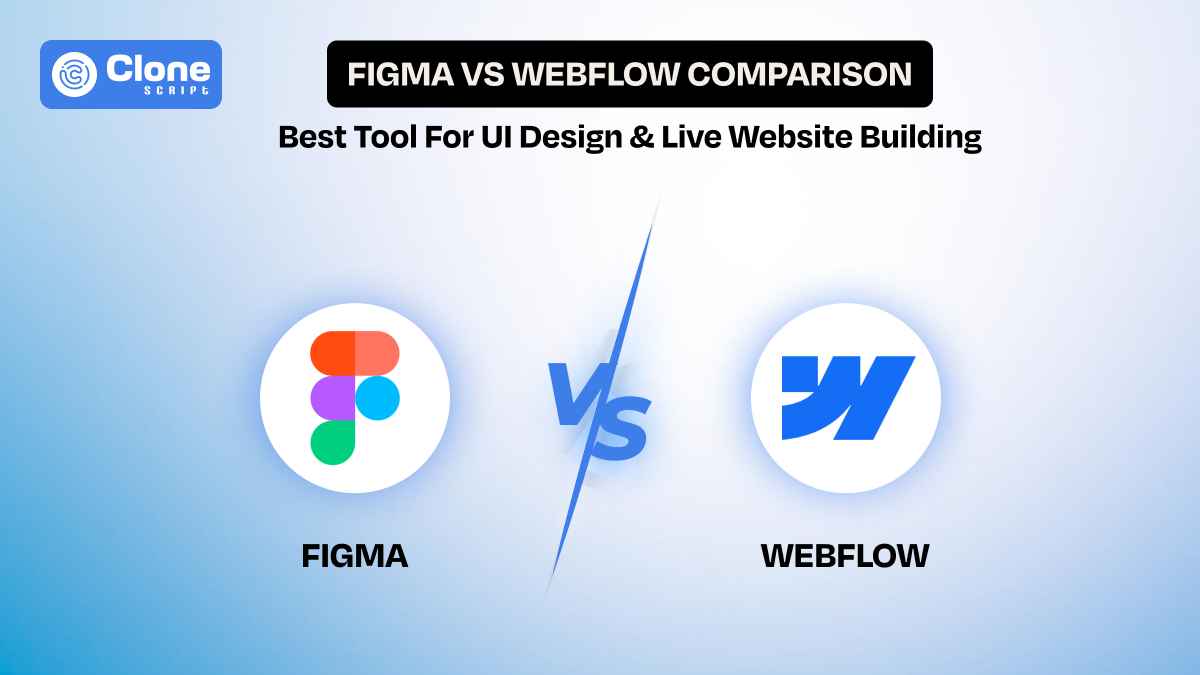
Figma vs Webflow: Best Tool for UI Design & Live Web Building
As a UI designer working in 2026, you're expected to do more than simply create static screens. Your role stretches across the entire design and implementation process, from early ideation to final launch. That’s why choosing the right UI design tools is strategic.
When people talk about Figma vs Webflow, they’re comparing two web design tools that occupy different parts of the design‑to‑delivery pipeline:
-
Figma is where you think, iterate, and refine the visual and interaction design.
-
Webflow is where you build and launch actual websites without writing traditional front‑end code.
This article guides you through both tools, explaining how they function, where they overlap, and how to integrate them in real workflows.
Figma Used for Design and Webflow Optimized for Deployment.
-
Figma: Your Design System Engine
In your day‑to‑day work, Figma acts as the central hub for UI design. You use it to:
-
Sketch the structure of screens and rough layouts.
-
Iterate on colours, typography, spacing, and interaction patterns.
-
Build reusable components that scale across multiple screens or products.
-
Prototype flows and transitions without writing any code.
-
Loop in stakeholders for real‑time feedback.
Figma isn’t trying to generate a working website. Instead, it gives you a playground for creative exploration, design consistency, and team alignment.
This distinction is: in Figma, what you’re creating are representations of intent blueprints that communicate design decisions clearly.
-
Webflow: Your Visual Website Builder and Runtime Environment
In contrast, Webflow lets you design with production in mind from day one. When you use Webflow:
-
Every layout you build translates into real HTML, CSS, and JavaScript.
-
You embed responsive behavior directly into breakpoints that the browser understands.
-
You define data structures and content models using its built‑in CMS.
-
You configure SEO settings, redirects, sitemaps, and hosting without a developer.
Webflow blurs the line between design and front‑end development. It doesn’t just illustrate behavior, it executes it.
So the fundamental distinction is this: Figma produces design artifacts; Webflow produces real websites.
Workflow Comparison: Design-First in Figma vs Build-First in Webflow

-
Figma’s Design‑First Workflow
When you’re starting a project, your priority should be clarity and alignment. Figma helps you:
-
Establish visual hierarchies.
-
Define interaction logic between screens.
-
Build component libraries that prevent redundant design work.
-
Collect feedback asynchronously or in real time.
One major advantage of Figma is its multiplayer editing environment. If you’re working with design partners, product managers, or developers, everyone can be on the canvas at once. There are features for commenting, iterating, and refining without confusion or version conflicts.
You’ll also appreciate features like:
-
Auto layout, which reduces manual spacing adjustments.
-
Variants, which let you define button states, modal views, and other UI patterns in one place.
-
Design tokens, which keep colour, type, and spacing consistent.
Figma’s workflow centers on design iteration and system thinking, rather than site execution.
-
Webflow’s Build‑First Workflow
With Webflow, the workflow flips. Instead of thinking about code as a separate step, you design with the intention of building something that will live on the web immediately. That means:
-
You’re building responsive breakpoints that behave like real devices.
-
You’re creating layout logic that maps directly to CSS grid and flexbox, not just as visuals but as browser behavior.
-
You’re configuring content collections that map directly to database‑style content structures.
-
You’re setting up SEO metadata and performance settings as part of the build.
The advantage here is that the final output of the live site is produced in the same environment where you experiment with layout and interactions. There’s no handoff or translation step required.
So your workflow in Webflow looks like this:
-
Define the visual structure in the canvas.
-
Add interactions and transitions that will actually run in the browser.
-
Connect your content with Webflow CMS.
-
Configure SEO settings and hosting.
-
Publish, and the site goes live.
This is why Webflow is increasingly adopted by designers who want full control over delivery without dependency on a separate front‑end developer.
Learning Curve Comparison: Figma for Fast Adoption, Webflow for Technical Mastery
-
Figma: Easy to Get Started
If you have experience with any modern design tool, Sketch, Adobe XD, or even Illustrator, you’ll feel at home in Figma because:
-
It’s interface‑driven, not code‑driven.
-
You don’t need technical knowledge to produce meaningful, high‑fidelity designs.
-
It runs in the browser, so setup and collaboration are painless.
Most designers can begin producing professional UI work in Figma within hours of exposure.
-
Webflow: Requires Broader Understanding
Webflow looks visual, but it assumes an understanding of how web layout works in practice:
-
Concepts like the CSS box model, grid, and flexbox matter here.
-
You’ll find yourself making choices that directly affect the output code.
-
Responsive behaviour is defined through real breakpoints, not just visual approximation.
That means there’s a steeper learning curve, but it pays dividends:
You don’t just design. You build experiences that behave the same in development and production.
Collaboration Difference: Real-Time Design in Figma vs Role-Based Editing in Webflow

-
Figma’s Real‑Time Collaboration
One of Figma’s greatest strengths is its collaboration model. You can do the following:
-
Invite others to edit the same file simultaneously.
-
Leave comments attached to specific elements.
-
Track version history and rollback changes.
-
Share live prototypes with anyone via a link.
This is especially useful when you’re:
-
Working with remote teams.
-
Managing feedback loops with non‑design stakeholders.
-
Maintaining evolving design systems.
Figma becomes the source of truth for your UI work, not just a drawing canvas.
-
Webflow’s Role‑Based Collaboration
Webflow’s collaboration model complements the development side of the process more than the design side:
-
Designers can invite editors to the project.
-
Content managers can update the CMS without touching the layout.
-
SEO specialists can update metadata directly.
Webflow’s collaboration is about managing and publishing content and live experiences, rather than pure design iteration.
Responsive Design Feature: Planning in Figma, Executing in Webflow
Design responsiveness is necessary because screens vary from 320px phones to large desktop displays. The web app has to be designed accordingly.
-
Figma: Planning Responsiveness
Figma gives you tools to manage the responsiveness. This includes:
-
Constraints and auto layout
-
Variants for component behavior across screen sizes
-
Visual previews
But these are design intentions, not live behaviour. What you’re doing in Figma is simulating responsive logic, not executing it.
That means developers still need to interpret your Figma design into HTML front-end code, which inevitably introduces variation.
-
Webflow: Responsive by Output
With Webflow, responsive design is the real deal. Here is the example:
-
You define settings for each breakpoint that are built into the production CSS.
-
Layout shifts and reflows behave exactly as you intended.
-
You don’t need to explain responsiveness to a developer; you built it.
Webflow’s approach eliminates ambiguity between design and production. It depends on the methodology of what you see, which is what the end user experiences.
Prototyping and Interaction: Figma for Validation, Webflow for Live Behavior
-
Figma: Prototyping for Validation
In Figma, you can build interactive prototypes that allow you to:
-
Show how screens connect
-
Illustrate transitions and micro‑interactions
-
Test user flows before development begins.
These prototypes are fantastic for usability testing, feedback sessions, and concept validation.
But they are not the actual interactions that run on a live website. They are simulations, which are critical to understand when you’re planning delivery.
-
Webflow: Interaction Engine That Ships
Webflow’s interaction system is part of the final product. When you create:
-
Scroll‑based animations
-
Hover and click interactions.
-
Sequenced motion timelines
These interactions run in production. They aren’t mockups or previews. They are real behaviors that your users encounter.
The difference is subtle but important:
-
Figma prototypes represent behavior.
-
Webflow interactions are behaviors.
This makes Webflow especially powerful if your goal is to ship advanced UI interaction without writing code.
Code Output and Handoff: Figma Specifications vs Webflow Production Code

-
Figma’s Role in Handoff
Figma provides tools like:
-
CSS property inspection
-
Asset export (SVGs, PNGs, etc.)
-
Annotated spacing and layout values
These help developers implement your designs, but there’s always a handoff step: someone needs to write HTML/CSS/JS to realize your design in code.
The Inspect element in the Figma design file gives the code. To use it, validation is required.
This handoff introduces risk, translation errors, delays, and misinterpretations that happen frequently in real projects.
-
Webflow’s Output Is Real Code
Webflow eliminates the handoff gap by generating:
-
Semantic HTML
-
Clean, modular-designed CSS
-
Bundled JavaScript for interactions
This means you can either:
-
Publish directly from Webflow, or
-
Export the code for use in other systems.
Either way, the output is functional production code, not just a design spec.
For many UI designers who want to reduce dependency on separate developers, this is a game‑changing shift.
CMS and Dynamic Content: Webflow Capabilities vs Figma Limitations

-
Webflow’s CMS: Built In and Powerful
Webflow’s CMS is optimized for scalability, and it lets you define:
-
Data collections (blogs, products, case studies, portfolios)
-
Relational content structures
-
Dynamic templates that update when content changes
-
Editor roles are separate from design roles.
This delivers true dynamic content management. You can update text, images, and structures without editing the layout.
This is essential for:
-
Marketing sites
-
Press and updates sections
-
Author portfolios or product catalogs
You don’t need an external CMS. Webflow becomes your content platform.
-
Figma: Static by Design
Figma doesn’t have native CMS capabilities. You can represent dynamic content visually, but it cannot store or manage content itself.
That’s fine when your goal is design exploration, but when your product demands changing content over time, Webflow’s CMS gives you a single place to build and maintain your site’s structure and content.
SEO, Performance, and Accessibility: Planning in Figma, Optimizing in Webflow
If your goal is to publish websites that get found and perform well, SEO and performance matter.
-
Webflow’s SEO Toolkit
Webflow supports these aspects:
-
Custom meta tags (titles, descriptions)
-
Structured data
-
301 redirects
-
Auto‑generated sitemaps
-
Global CDN hosting for fast delivery
This means you can manage search visibility directly from your build environment without plugins or post‑deployment work.
Website speed performance matters too. Webflow’s output is optimized for speed out of the box, with clean CSS and efficient resource loading.
-
Figma: No SEO Capability
Figma’s role stops at the design stage. While you can design SEO elements (visualizing structure, content placement, etc.), SEO execution has to happen later in development or in Webflow if you build there.
This makes Figma a design planning tool but not an SEO execution platform.
When to Use Which Tool: Figma, Webflow, and the Hybrid Workflow
Use Figma When You’re:
-
Building complex design systems
-
Iterating custom website UI and UX patterns
-
Collaborating deeply with other designers
-
Validating flows before beginning build
Figma shines when your priority is clarity and consistency before execution.
Use Webflow When You’re:
-
Building live, responsive websites
-
Managing content with a CMS
-
Focusing on SEO and performance
-
Reducing handoff overhead
-
Designing and deploying in one environment
Webflow excels when your priority is production and delivery.
Use Both Together, A Hybrid Workflow
In real practice, most successful teams adopt a pattern:
-
Start in Figma: It defines UI, builds prototypes, and validates interactions.
-
Move to Webflow: It recreates finalized designs, configures content and SEO, and publishes the site.
This hybrid approach ensures that your design work is thoughtful and validated, and your final product is efficient and live.
Conclusion
Figma and Webflow are both useful, but they are designed for different stages of the design pipeline:
-
Figma is your design workshop. It’s where you explore, refine, and systematize user interfaces.
-
Webflow is your delivery engine. It’s where designs become real websites with SEO, responsiveness, and live content.
By understanding their strengths and limitations, you position yourself as a designer who not only creates beautiful UI but also delivers real web experiences with clarity, efficiency, and impact.
In 2026, understanding of both tools and knowing when to use each is a defining skill for high‑performance web UI designers.