BTC - Bitcoin
 USDTERC20 - USDT ERC20
 ETH - Ethereum
 BNB - Binance
 BCH - Bitcoin Cash
 DOGE - Dogecoin
 TRX - TRON
 USDTTRC20 - USD TRC20
 LTC - LiteCoin

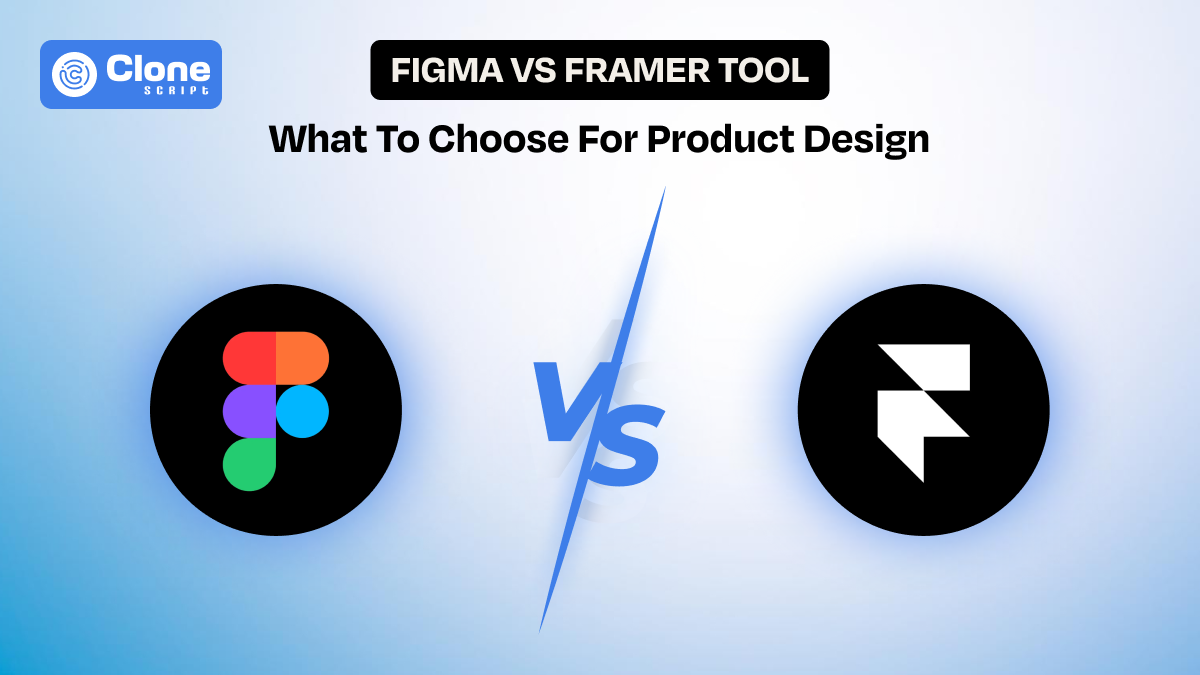
Figma vs Framer: Which One Makes Your Web Applications More Trustworthy?
Every digital product you design, from a SaaS platform and mobile app to a web interface, the trust factor works. If users trust the interface, they stay. If they don’t, even the best-looking design fails.
For UI/UX and web designers, choosing the right design tool plays an important role. We have two tools in discussion: Figma and Framer. Both platforms are powerful, give modern workflows, and enhance speed and creativity.
But they shape trust very differently.
This blog explains the difference between Figma and Framer. By the end, you’ll know exactly which tool helps you build a more trustworthy digital product depending on your project type, team structure, and the user experience you want to deliver.
What is Figma?
Figma is a browser-based professional UI/UX design platform. It is usually built for interface design, prototyping, team collaboration, and large-scale product workflows.
Figma UI design tool stands out for being intuitive, structured, and incredibly versatile for every level of designers. So, it becomes the first choice for them to build systemized, scalable digital experiences.
Think of Figma as: A complete design workshop that keeps everything organized, from layout to components to prototypes.
What is Framer?
Framer is a web-focused design and development tool that allows the design team to build high-fidelity, interactive, near-production-ready websites without coding.
Unlike traditional design tools, Framer combines layout design, animation, interactivity, and actual publishable website generation. It’s a no-code website maker tool, you can say.
Think of Framer as: A design-to-real website engine built for motion, modern UI, and speed.
Comparison Between Figma UI Design and Framer Website Maker Tool
Here is a difference between Figma and Framer that sets them apart:
-
Prototyping and Animation Use Cases
-
UI Layouts with Simplicity in Use Cases
-
Designing Features
-
Team Collaboration Features
-
Integrations and Plugins
Let’s understand these tools.
1. Prototyping and Animation Use Cases
The first point of discussion is the abilities of both tools’ prototyping and animation.
-
Figma Prototyping
Figma is the industry-standard tool for UX design, system creation, and structured interface workflows. This web design tool can be useful for design teams that prefer clarity, scalability, and predictable interface behavior.
This web design tool is not just useful for planning user journeys or collaboration in real-time. It is also helpful to clean the component libraries' maintenance. The best part is that you can be consistent across the design system.

Ultimately, the digital product you build a mobile application or a website, will have a lower chance of being unsuccessful.
Where Figma wins in trust-building?
-
Component-driven design makes scaling effortless for a web application.
-
It is perfect for wireframes creation, flows mapping, and UX documentation without leaving the platform.
-
Cross-functional teams working on a complex project can access highly collaborative features.
-
The predictable behavior in the workflow helps avoid confusion during handoff.
Limitations of Figma in animations:
Figma is a tool for preview, not the final experience. So, if you want to build to simulate real website-level motion, 3D effects, or high-fidelity interactions, Figma can’t be helped. For that, you may have to move toward other tools.
-
Framer’s Advanced Animation Design
Framer positions itself as a tool for designers who want their work to feel alive rather than static UI. It lets you create real, interactive web experiences with animations, physics, and responsiveness. The best thing is you don’t have to write the code in an IDE; everything can be done through a drag-and-drop editor.
To make modern marketing sites, product launches, SaaS landing pages, and portfolios where motion is a core storytelling element, Framer has always risen as the first choice.

Why designers choose Framer?
-
Real and code-backed interactions instead of simulated flows are available.
-
Smooth, natural motion using springs, gestures, and scroll effects is useful.
-
Instant publishing to a live website approach works for small businesses.
-
Clients can “feel” the product instead of imagining it without visualization.
Limitations of Framer in prototype:
Despite the X-factor of the Framer website maker tool, it is not ideal for large-scale UX systems. Figma tops for deeply structured design documentation compared to this tool. In short, Framer is built for experience, not complexity management.
2. UI Layouts with Simplicity in Use Cases
Every web designer is working on blank screens for User Interface (UI) layouts. So, we have to check whether Figma is superior or Framer wins this time.
-
Figma User Interface
One thing you have to note is that Figma is built around clarity and consistency. Its UI feels familiar to anyone coming from classic design tools. From panels on the left for layers and right-side controls for properties to a clean canvas in the middle, everything is optimized.
This results in a predictable flow to design the layout smoothly and interruption-free. It doesn’t matter whether you design the UI for a FinTech web product or puzzle game app development.

Why designers trust Figma’s layout tools?
-
A clean, minimal workspace that properly reduces cognitive load.
-
Easy grid setup, auto-layout, constraints, and responsive rules already deployed.
-
Component libraries that behave reliably across screens from desktops to smartphones.
-
Intuitive drag-and-drop workflow without needing extra steps for configuration.
Why does Figma UI build trust?
Designers always know what will happen when they use a tool in Figma. The platform rarely surprises you. It is great for teams handling complex UI systems or large multi-page dashboards.
Limitations of Figma UI:
Figma’s UI is system-focused, not experience-focused. However, adding the layouts that react in real-time, working animations, and interactions can’t be done.
-
Framer Interface
Framer’s interface feels more like a modern web development environment mixed with a design tool. It’s visually polished, dynamic, and built for website creators who want to see immediate changes the moment they tweak something.

Where does it shine?
-
Live and responsive behavior is added directly to the canvas. No need to make the design yourself manually.
-
Automatic layout adjustments are powered by flexbox-like rules that work horizontally and vertically. It is important for responsive web development.
-
Smart stacking, alignment, and adaptive behavior are optimized.
-
Real-time preview that feels like designing directly in the browser. It helps design teams to check that the work is in the right direction.
Why do designers love Framer?
The Framer website building tool is optimized for what you see actually behaves like a functioning website. The layouts respond just as they would once published. It means you can get a more honest preview of the final product.
Limitations of Framer UI:
There are more settings hidden behind small menus that can usually be found in Framer. It’s modern, but slightly less predictable for designers new to web behavior or CSS-like logic.
3. Designing Features of Figma and Framer
Here comes the main part of the discussion to judge the efficiency of both tools: designing features.
-
Figma’s Designing Capabilities
Figma shines when it comes to building structured, organized, and scalable designs. It’s ideal for UX flows, dashboards, multi-screen apps, SaaS platforms, and product design systems. The tool is engineered for precision.

Where Figma excels, as usual?
-
Auto Layout for responsive design at the component level is available.
-
Libraries for large design systems with reusable elements are helpful to maintain consistency.
-
Vector editing tools built for pixel-perfect UI work for every size of screen.
-
Easy creation of variants, tokens, and component properties exists.
-
A clean layer structure for system-driven design delivers the idea for editing and scalability.
Why do designers rely on Figma?
Figma gives you full control over every pixel without overwhelming you. It’s the perfect environment for planning how a digital product should behave structurally before building on a large scale.
Limitations of Figma Design:
Frankly speaking, Figma is still a static-first web design tool. While it has Smart Animate and basic transitions, it’s not designed for rich, expressive digital experiences like scroll transformations or cinematic motion as Framer does.
-
Framer’s Distinct Features
We know Figma is a super tool for web UI design, but Framer also raises its hand for consideration. A web-level creativity in the design phase especially makes this tool useful.

Where Framer stands out?
-
Built-in dynamic components are available (carousels, accordions, sliders, etc.). There is no requirement to do everything.
-
Real responsive behavior using breakpoints, which means you can check where the focus is needed.
-
Advanced motion tools: scroll animations, parallax, and gestures make website building easier.
-
Code components for deeper customization are useful to suit the branding and professionalism with ease.
-
AI-powered layout generation and content filling save time from doing work manually.
Why does it matter?
Framer lets designers craft “experience-heavy” interfaces, not just screens. The freedom to simulate real-world interactions builds stronger user trust and client conviction from small applications to larger web frameworks.
Limitations of Framer:
The thing is, the Framer tool is that more power means more complexity. Beginner designers unfamiliar with web logic or motion principles may require time to adjust. There’s a chance of not getting the expected results if you don't know the actual use cases.
4. Team Collaboration Features
In website UI/UX design with a professional approach requires collaboration with the entire team and the client. Let’s see who wins in this segment.
-
Figma Collaborative Features
Figma sets the industry benchmark for collaboration. It was built with a multi-user workflow as its core philosophy. This means every designer who is working on the website design project on different sections and layouts can manage the tasks in real-time.

What makes Figma team-friendly?
-
Multiple designers are editing a file in real-time. It doesn’t matter that a web designer works in California, USA; he/she can be connected to India’s UI designing team.
-
Interactive comments, tagging, and feedback threads are available. So, making the changes in the project or adding more icons suited to branding can be identified with the design review.
-
Shared libraries for consistent components are delivered for the product's usability.
-
Version history with effortless restoration can be done. If the work has been compromised, there’s a choice for backup.
-
Easy handoff with specs, CSS values, and inspect mode makes Figma the best website UI design tool.
Why do teams trust it?
Designers, developers, product managers, and clients can all view the same Figma design file without any confusion. There’s nothing that gets lost, duplicated, or mismatched.
Limitations of Figma:
Figma’s collaboration is unmatched, but it becomes slower in extremely large or animation-heavy files. Also, operating smoothly on those files requires heavy RAM-equipped and advanced-level systems.
-
Framer’s Collaborative Features
Framer has evolved quickly in collaboration, offering real-time editing and shared team workflows similar to Figma. But it's for website building instead of designing.

Where does Framer collaborate well?
-
Real-time co-editing on live web layouts. You don’t have to change the backend code frequently to check that the change is implemented.
-
Commenting and feedback are baked directly into the preview. If someone from the team shares their suggestion can be seen in the preview before it goes live.
-
Shared components and styles that update instantly. So, it can be easier for the team to manage the brand consistency.
-
Instant publishing for client reviews (“Check this live link”). Through the link, clients can see the actual web application before it goes to production.
Why do clients love it?
Using Framer, you can able to see a design behave like a real website. So, the website development approval cycle is much faster.
Limitations of Framer:
Framer’s collaboration features are still growing. It’s great for smaller teams, but Figma remains stronger for system-heavy enterprise collaboration.
5. Integrations and Plugins
Figma and Framer plugins enhance the product's usability and functionality.
-
Figma Integration and Plugin Choice
Figma’s plugin ecosystem is massive and designer-friendly. Virtually every modern design task has a plugin to use for a good output on the working web design project.

What does Figma support?
-
If you need plugins for icons, UX libraries, UI kits, and automation is available with free and premium plans.
-
Tools for content, mock data, illustrations, and gradients can be easily found and used for prompt delivery.
-
Integrations with Jira, Notion, Zeplin, Webflow, and DevTools, like QA & Testing, and project management, become easy.
-
AI-powered tools for copy, images, wireframes, and design tokens are already available as Figma design plugins.
Why does it work so well?
Behind Figma’s success for ecosystem development, a huge expert community working around the clock. However, the new web designers and UI/UX teams can also be part of it. This makes the tool incredibly customizable for every niche workflow.
Limitations of Figma plugins:
Figma plugins enhance design, but none can offer real interaction-level behavior like Framer’s built-in motion engine. You can’t expect the advanced functionality from Figma as Framer does.
-
Framer Integration and Plugin System
Framer’s ecosystem is more specialized than Figma's. It focuses on components, code elements, and high-quality UI functionality.

Where Framer wins?
-
Component packs with real functionality (sliders, menus, navbars). Every UI component is ready to be integrated into the web application.
-
Integrations with analytics, forms, embeds, and CMS tools are already optimized for improved functionality and flexibility.
-
Direct linking to code repositories for custom React components. Developing advanced websites and applications can be done through this no-code builder tool.
-
API-based integrations for dynamic content generation that offer a complete setup to launch the web product efficiently.
Why do designers enjoy it?
Plugins in the Framer don’t just decorate the design. They extend what the interface can do in real time. So, advanced functionality doesn’t require a coding effort.
Limitations of Framer:
Framer’s ecosystem is Smaller compared to Figma, but the tools are more powerful for actual interaction design. For more complex animations or visual effects, you have to put yourself into coding.
Let’s understand the scenarios when Figma will perform at its best and when Framer gets attention in a web design project.
When to Choose Figma Designing?
Choose Figma when you need structure, clarity, and scalable design systems. Figma becomes your best choice when the project demands organization and precision.
Use Figma when you need the following:
-
UX flows, wireframes, and early-stage planning
-
Dashboard-heavy products or large web apps
-
Design systems and component libraries
-
Team-heavy collaboration with the project managers and developers
-
Pixel-precise layouts and predictable screens
Why Figma builds trust?
Stakeholders get a clean overview, developers get exact details, and designers get a stable workspace. Figma UI tool reduces the risk of inconsistencies throughout long projects.
If your output is static screens, SaaS platforms, or multi-page apps, Figma is simply unmatched.
When to Use Framer for UX Design?
Framer is useful when you want your designs to feel alive. If the project relies heavily on interaction, motion, and on-page visual storytelling, Framer becomes your strongest tool.
Use Framer when your goals include:
-
Landing pages with motion or scroll effects
-
High-conversion marketing websites
-
Projects where “feel” matters as much as “function.”
-
Real responsive behavior during the design phase
-
Rapid prototyping that mimics development-level interactions
Why Framer builds trust?
Clients can see exactly how the user will experience the real product. Not just how it looks.
Framer is ideal for creators, marketers, product teams, and designers who want to combine design and a front-end website development experience without coding.
Conclusion
Figma and Framer both help designers build trustworthy digital products, but in very different ways.
Both tools are powerful, but trust comes from choosing the right one for the right purpose:
-
Use Figma when precision, collaboration, and system thinking matter.
-
Use Framer when storytelling, motion, and real-time experience matter.
A trustworthy digital product isn’t just visually beautiful. It must feel right, behave predictably, and communicate confidence. Figma and Framer each help you achieve that in their own unique ways.
FAQs
-
What is the main difference between Figma and Framer?
Figma is built for UX structure, design systems, and product interfaces. Framer focuses on motion, interactivity, and building realistic, responsive web experiences.
-
Which tool should I choose for web design: Figma or Framer?
Choose Figma for large web product designs and consistency. Choose Framer if you need interactive, high-conversion websites with real-time behavior without coding.
-
Does Framer replace Figma for interface design?
No. Framer is excellent for prototyping and web publishing. But Figma remains perfect for complex UI systems, variations, and scalable workflows.
-
Is Figma useful for e-commerce website design?
Yes. The real-time collaborative features, wide range of plugins, and community support make Figma the best e-commerce website UI design tool.
-
Which UI design tool is more affordable, Figma or Framer?
Figma can be a good tool as its pricing starts from $3/month according to different categorized plans. While the Framer tool charges around $5 to $10/month, billed annually. Before proceeding, check the actual pricing of these tools, as it may differ.